


Microsoft Defender: Antivirus
4.42.58K Reviews
App Specs
- Version
- 1.0.9212.0102
- Updated On
- License
- Free
- Downloads
- 10,000,000+
- Developer
- Microsoft Corporation
- Categories
- Tools
- Platform
- Android, iOS
Screenshots
 Analysis by AppCompare
I think of phone security less as a single scan and more as what happens when I move between networks, open a message, or follow a link in a hurry. That makes Microsoft Defender: Antivirus an interesting fit: it is a free security app from Microsoft Corporation, designed to help protect a phone as it is used rather than asking me to remember to check it constantly. Its usefulness depends partly on the situations I face and how I prefer to manage security, so I would judge it by how well it fits my everyday habits, not by the size of its feature list.
When protection meets a network connection
Connectivity matters most when a phone is exposed to something unfamiliar: a link in a group chat, a page reached through a social post, or a sign-in prompt on public Wi-Fi. The app’s web and phishing protections are relevant in those moments because they focus attention on risky destinations and deceptive attempts to get personal details. I would still treat an alert as a reason to pause and inspect the situation, not as a substitute for checking a sender or deciding whether a site deserves my trust.
That distinction is useful. Security tools can reduce the chance of walking into a known trap, but no warning system can make every online choice safe. If a message claims to be urgent, I would go to the service’s app or type its address myself rather than relying on a link, even with protection enabled. Defender makes a sensible extra layer for browsing, not a reason to stop using ordinary caution.
How it fits different phones and routines
For someone who checks email, shops, and handles everyday accounts on one device, the appeal is straightforward: security can sit alongside normal phone use instead of becoming a separate chore. The app is listed for Android and iOS, while the Android minimum operating-system requirement is version 10. That makes compatibility worth checking before installing, especially if an older phone has not been updated in a while.
The best fit is likely a person who wants a familiar security name and a clear place to review protection status. It may also suit someone who helps relatives with their devices, since the published feature set includes family protection. I would not assume that this turns one person into a full-time administrator, though; family arrangements still need clear expectations about whose devices are being managed and what oversight everyone is comfortable with.
There is also a trade-off for people who already use another security suite. Two products trying to handle the same protective tasks can make alerts harder to interpret and settings less clear. I would first decide which tool is responsible for web and threat protection, then avoid stacking apps just because each one sounds reassuring. Defender is most useful when its role is clear.
A realistic day with the app
Picture a commute: I open a work message, tap a link that looks like a shared document, and land on a page asking me to sign in. That is exactly the sort of rushed moment when a warning can prompt me to stop before entering a password. If the page looks legitimate but I am unsure, I can close it and reach the service through a trusted route instead. The practical benefit is not just blocking a threat; it is creating a pause at the point where a hurried tap could become a costly mistake.
Worth Reading Before You Choose

EA SPORTS FC Mobile 26 Is a Bigger Football Game, but It Takes Time

Flipboard Shows What News Apps Must Do Beyond the Feed

Switching to Android Auto Means Rethinking Your Driving Routine

Google Calendar Makes a Crowded Week Easier to Manage

Ludo King Makes the Most of the Minutes Between Plans

Baby Panda World Brings Quick Play to Modern Phones, but Its Game Library Feels Busy
At home, the same phone may be used for shopping, family messages, and account recovery. I would keep the app’s status view in mind when something feels off, but I would not treat a reassuring screen as proof that every account is safe. Strong, unique passwords and careful handling of verification requests remain important. The app works best as one part of a sensible routine, rather than the whole routine.
What to do when something goes wrong
If protection raises a concern while I am browsing, my first move would be to stop interacting with the page. I would close it, avoid entering information, and open the relevant service directly if I need to check an account. If I have already submitted a password, changing it through the official app or site is a more useful response than repeatedly revisiting the suspicious link.
Security apps can also create friction when a person does not understand an alert or has another tool installed. I would read the warning carefully before dismissing it, and check which app is responsible for the protection setting rather than changing several controls at once. That makes it easier to tell whether a problem has actually been resolved. For a family member who is less comfortable with phones, a short explanation of what an alert means can be more helpful than simply telling them to tap through it.
Keeping data use in perspective
Because the app deals with online protection, I would think about connectivity as part of its normal role: checking threats and web activity is most relevant when using connected services. If I am trying to limit mobile data, I would review the app’s available settings and the phone’s own data controls rather than assume every security check behaves the same way on every connection. That is a practical habit for any security app, especially when traveling or using a limited plan.
Privacy is another reason to read the controls instead of accepting every default without a glance. I prefer to understand what a security tool can access and what choices it offers before relying on it. The app’s presence does not remove the need to make careful decisions about account permissions, links, or information shared online. If privacy settings matter to you, take a moment during setup to review them and revisit them if your needs change.
Microsoft Defender: Antivirus is free to install, though in-app purchases are listed from $6.99 to $129.99 per item. I would check what a purchase covers before paying, rather than assuming the free experience or a particular protection feature requires an upgrade. It is rated for Everyone, and its average rating is 4.3 from around 72,000 ratings, with over 10 million installs. Those figures suggest it has reached a broad audience, but they cannot tell me whether its setup or alerts will suit my own phone.
Getting Started with Microsoft Defender
So, I downloaded the app and was greeted with a clean, intuitive interface. You know how some apps make you feel overwhelmed right from the start? Not this one. Microsoft Defender: Antivirus keeps it simple with user-friendly navigation. It's like Microsoft knew exactly what I needed.
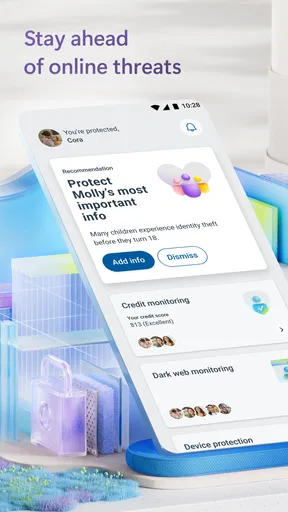
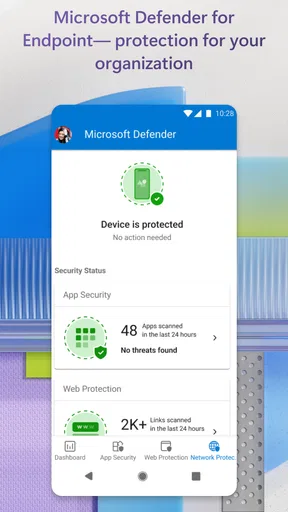
Setting it up was a breeze. A few taps here and there, and I was up and running. The app's main screen gives you a quick overview of your device's security status. It’s reassuring to have that peace of mind.
Features That Stand Out
Alright, let’s talk features. First off, the real-time scanning is a gem. It checks apps and files as you access them, making sure nothing fishy gets through. You can also schedule scans, which is super handy for those of us who tend to forget.
One feature that caught my eye was the web protection. It actively blocks malicious websites, which is a relief, especially when I'm browsing random links on social media. The app also includes phishing protection, keeping those pesky scam emails at bay.
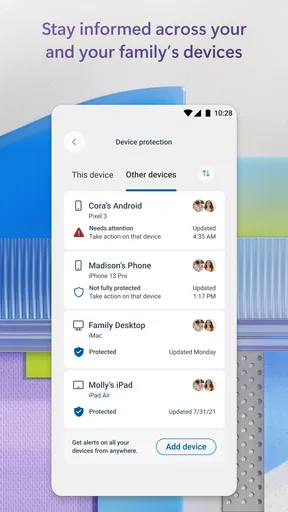
I was pleasantly surprised by the family protection feature. It lets you monitor and manage your family's devices. As someone who often plays tech support for the family, this is a lifesaver!
Performance and Usability
Now, you might be wondering about performance. Does it slow down your phone? Good news: it doesn’t. I was worried about battery drain and lag, but I didn’t notice any significant changes. The app runs quietly in the background without hogging resources.
Usability-wise, it’s smooth sailing. The app doesn’t bombard you with notifications, only alerting you when something needs your attention. It’s the perfect balance of helpful without being annoying.
Privacy and Trust
In this digital age, privacy is everything. Microsoft has a solid reputation for security, and it shows in this app. They’re transparent about what data is collected and how it’s used. You can even customize your privacy settings to fit your needs.
For those concerned about data being sent to the cloud, Microsoft minimizes what’s uploaded. Most scans and checks happen locally on your device, which is a big plus for privacy buffs.
Final Thoughts
Overall, I’m impressed with Microsoft Defender: Antivirus. It’s a robust app that offers comprehensive protection without being intrusive. Whether you’re tech-savvy or just looking for an easy way to keep your device safe, this app ticks all the right boxes.
Sure, it’s not packed with a million features, but that’s precisely why I like it. It focuses on doing a few things really well, rather than overwhelming you with options you’ll never use. Plus, it’s free for personal use, which is always a win in my book.
If you’re in the market for a reliable antivirus solution on your phone, give Microsoft Defender a spin. It’s got the backing of a trusted name in tech and the functionality to keep your digital life secure. Happy browsing, folks!
Pros
- Comprehensive protection suite.
- Real-time threat detection.
- Seamless integration with Windows.
- User-friendly interface.
- Low system resource usage.
Cons
- Limited features on mobile.
- Occasional false positives.
- No advanced customization.
- Cloud dependency for updates.
- Basic compared to premium apps.
FAQs for Microsoft Defender: Antivirus
What features does Microsoft Defender offer on mobile devices?
Microsoft Defender provides a robust set of features for mobile devices, including real-time antivirus protection, phishing protection, and web threat scanning. It also offers a secure VPN for safe browsing and privacy, along with integration for family safety settings, helping to keep both your device and your data secure.
Is Microsoft Defender free to use on Android and iOS?
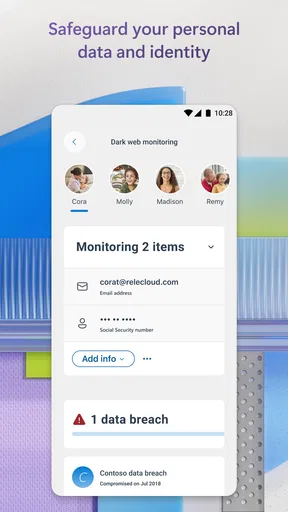
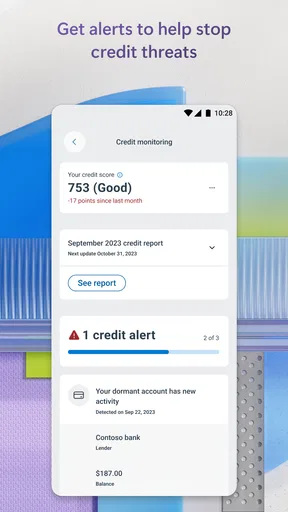
While Microsoft Defender offers a free version with basic protection features, a premium subscription is available for users who want additional features such as identity theft monitoring and more advanced security tools. The free version is sufficient for basic protection, but the premium version provides comprehensive coverage.
Does Microsoft Defender impact the performance of my phone?
Microsoft Defender is designed to be lightweight and efficient, minimizing its impact on device performance. While it runs in the background to provide continuous protection, it uses minimal resources. Most users won't notice any significant slowdown, ensuring a seamless experience while keeping your device secure.
How do I set up Microsoft Defender on my mobile device?
Setting up Microsoft Defender is straightforward. After downloading the app from the Google Play Store or Apple App Store, follow the on-screen instructions to complete the installation. You'll need to sign in with a Microsoft account, and then you can customize your security settings as per your needs.
Can Microsoft Defender protect against phishing attacks on my phone?
Yes, Microsoft Defender includes features specifically designed to protect against phishing attacks. It scans links and web pages for malicious content, alerting you to any potential threats before you interact with them. This proactive approach helps safeguard your personal information from being compromised.


